Nieuw
Macro Transfer
Export macros and review selected imports with Update or Skip controls.
Werkt met
Support
Ontwikkelaar
Tall Guy Technologies Inc.
About this app

Tall Guy Technologies builds focused tools for practical Zendesk workflows.
Move macros. Keep control.
Export the macros you need, make bulk edits outside Zendesk, then review your changes before importing them. Choose records, check the preview and confirm what changes.
- Export only what you need. Select one, several or all available macros and download JSON or CSV.
- Bring your own files. Import Zendesk macro JSON or match external CSV columns to the supported fields.
- Review before writing. Inspect validation results, choose Skip or Update for matching titles and trial 1–5 selected macros before a larger batch.
- Choose the imported state. Create inactive macros by default, or deliberately select Active and acknowledge live changes.
- Control reply formats. Preserve supplied plain text, generate missing plain text from HTML or exclude plain-text replies.
- Verify the result. Review confirmed imports with links to their macros and download a journal of the run.
Bulk work, without the guesswork
Use the tools you already know to edit exported files, then return to Zendesk for a reviewed import. Sort the preview, check blocked rows and select exactly what to transfer. Source IDs are never used as destination identities.
Macro Transfer is designed for administrators working with supported, portable macro actions. Restricted macros, attachments, category metadata, unresolved dynamic content, inline images and tenant-dependent actions may be blocked. It does not replay destination order, migrate an entire account or automatically roll back changes. Avoid simultaneous edits: read-before-write checks cannot eliminate concurrent changes.
Your data
The app reads your role, account context and macro configuration to prepare exports, compare matches and verify writes. Macro content, metadata and update before images are processed in browser memory and files you choose to download. Transfers use your signed-in Zendesk account. There is no publisher backend, analytics or AI service.
Files and journals may contain sensitive configuration. Closing or reloading clears the in-memory journal; downloaded files remain until you remove them. Uninstalling the app does not undo macro changes or delete downloaded files.
Built by Tall Guy Technologies
Focused tools for practical Zendesk workflows.
Informatie over app
Installatie-instructies
Install Macro Transfer in the Zendesk Support account you administer, then open it from the navigation bar. Only administrators can use the app. No separate account or API token is needed.
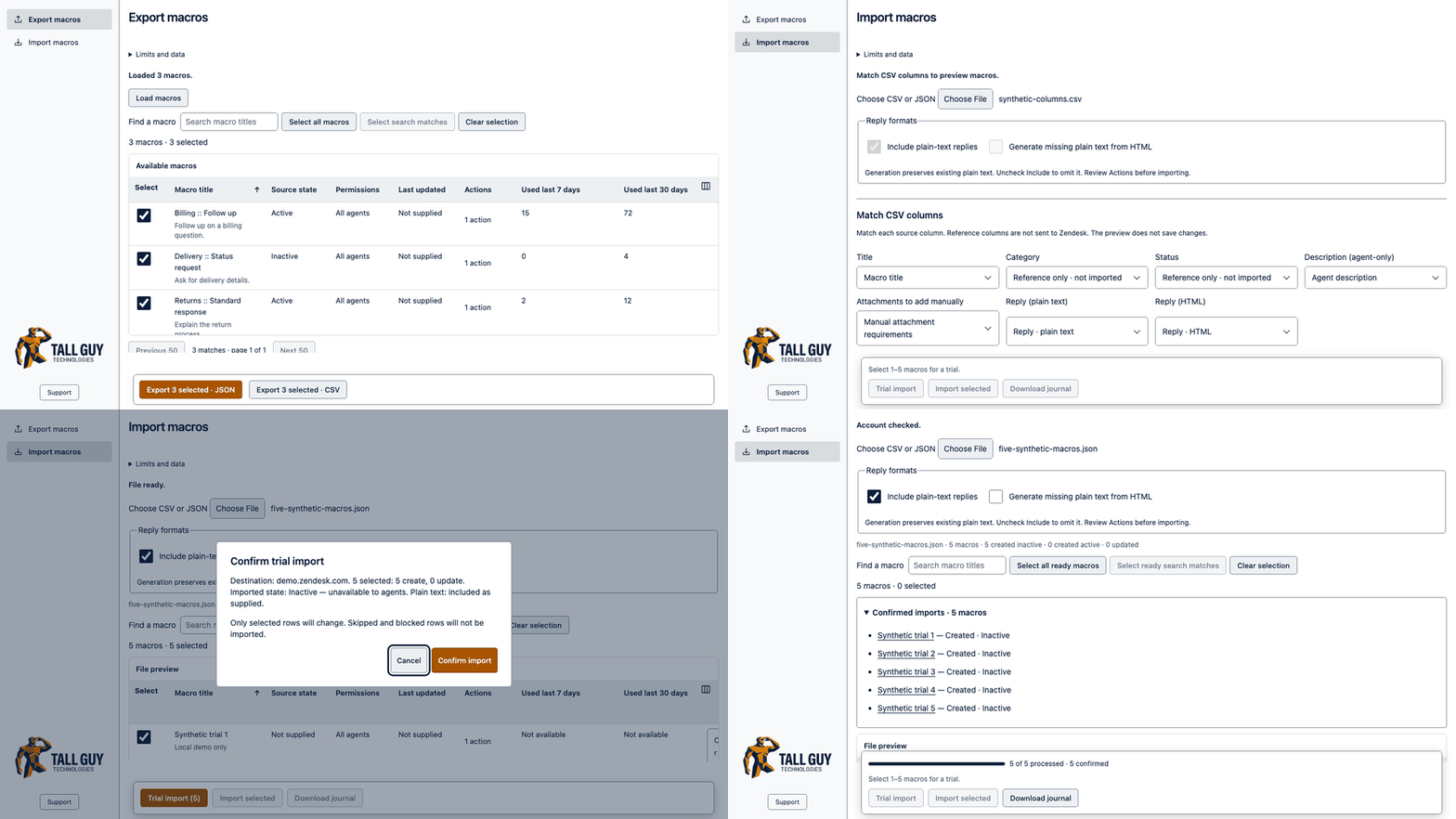
To export, select Load macros. Search or sort the table, select one, several or all available macros, then choose JSON or CSV. Keep an unchanged export as a backup before editing. Usage columns are informational; missing usage is not zero.
To import, open the app in the destination Zendesk account and choose your file. Supported inputs include Zendesk macro JSON and CSV. For CSV, match columns to the supported fields and select Preview mapped macros. Column order does not need to match. Reference-only columns are not imported.
Review the preview before selecting rows. Blocked rows explain what needs attention; fix the source file and upload it again when necessary. Attachments and other account-specific dependencies may require manual work. Do not assume every field in an export can be transferred to another account.
Review matching titles. Skip is the default for matches; choose Update only when you intend to change that destination macro. Source IDs do not identify destination macros. Review the actions and reply text before proceeding.
Choose the reply options and imported state. Plain text is included as supplied by default. Optionally generate missing plain text from HTML, or exclude plain text. Inactive is the default state; choose Active only when ready for agent use. Changing reply options resets your selection and trial, so review and select rows again.
Select 1–5 ready macros and choose Trial import. More than five disables the trial button. Review the confirmation, then confirm the import. Open the linked results in Zendesk and verify the content and state before continuing.
After a successful trial, select the remaining ready rows and choose Import selected. Review the confirmation again. Skipped and blocked rows are not imported. Avoid simultaneous edits or running the same transfer in multiple tabs.
Review confirmed results and download the journal before closing or reloading. If an outcome is uncertain, stop and check the destination before retrying; a retry could create a duplicate. Uninstalling does not undo macro changes. Keep downloaded files and journals secure.
For help, select Support below the company logo. Share the error message and file structure when needed; remove sensitive macro content before sharing files.
Laat een beoordeling achter
Deel je ervaring met de rest van de Zendesk-community